A rich jewelry listing and a fast jewelry listing pull in opposite directions. More angles, macro detail, a worn frame and a rotation all give a buyer what they need to commit, and all of it arrives as page weight.
Both are achievable at once. This covers what counts as fast enough, the settings that get you there, how motion fits inside the budget, and what the numbers look like on either side of the change.
Do Product Images Actually Slow a Jewelry Store?
Images carry most of the weight on a typical Shopify product page, with industry measurements placing them between 50% and 80% of the total. Jewelry stores sit at the high end of that range, because the category rewards macro detail and multiple angles more than most.
The point worth holding onto is that weight comes from file preparation rather than from image count. A listing with eight properly prepared images loads faster than a listing with three straight off a phone.
That reframes the whole question. Rather than publishing fewer assets, you prepare the ones you publish so the buyer gets the full set at speed.
What Counts as a Fast Enough Product Page?
Google's Core Web Vitals set the standard: Largest Contentful Paint at 2.5 seconds or less, Interaction to Next Paint at 200 milliseconds or less, and Cumulative Layout Shift at 0.1 or less, measured at the 75th percentile of real visits (web.dev). On a product page the largest element is almost always your hero image, which puts image handling directly on the metric.
Two implications for jewelry specifically.
Your hero image is the LCP element. It gets priority treatment, meaning it loads eagerly and at full quality, while everything below the fold waits its turn.
Layout stability is an image job. Width and height attributes on every image hold the space before the file arrives, which keeps the page from jumping as your gallery fills in.
The 75th percentile detail matters too. The measurement runs on real visits across real devices, so a page that feels instant on studio wifi can still sit outside the threshold for a customer on a phone.

What Image Settings Should Jewelry Stores Use?
Export at 2048 pixels on the long edge, compress to roughly 150 to 250KB, and let Shopify's CDN handle format conversion from there. That combination holds macro detail on zoom while keeping the gallery light.
Four settings worth locking:
Dimensions. 2048 pixels covers retina displays and gives zoom room for pavé and hallmark detail. Uploading a 4000 pixel file gains a buyer nothing and costs everyone load time.
Compression before upload. This is the one that surprises people. Shopify's CDN serves WebP automatically and generates responsive sizes through the image_url filter, though it stores your original at whatever size you upload, so a 5MB export stays a 5MB source file. Compression happens on your side.
Quality at 80 to 85. Jewelry holds up well at this range. Below it, compression artifacts start showing on gradient metal surfaces where the eye is most sensitive.
Format. Modern Shopify 2.0 themes serve WebP with a JPEG fallback automatically. Uploading JPEG rather than PNG for photography avoids carrying three to five times the file size for zero visible gain.
Two theme-level habits complete it. Lazy loading on everything below the fold, which most Shopify 2.0 themes include natively, and width and height attributes on every image tag.
The GemIQ App exports at web-ready dimensions and compression on capture, so the files arriving in your product editor are already sized for the page rather than sized for the sensor. GemStudio, the AI software that produces model and lifestyle visuals from a single product photo, generates its output the same way.
Do Sparkle Effect Apps Slow Down Product Pages?
Animated sparkle overlays and glitter effect apps add JavaScript that runs on every page load, which lands on Interaction to Next Paint rather than on image weight. They are a separate cost from your photography, and worth testing separately.
Run the check before you commit to one:
- Measure your product page score with the app disabled, then enabled
- Watch Interaction to Next Paint specifically, since script execution shows up there
- Check on a mid-range phone rather than a desktop, since that is where script cost concentrates
An honest alternative is worth naming here. Real sparkle captured in the photograph carries the same visual payoff at zero script cost, because it lives in the image file you were loading anyway. GemSparkle, the clip-on LED loupe at $299 now used by more than 20,000 jewelers, produces that sparkle at capture through three sparkle modes and a 3000K to 7000K color temperature range.
Captured sparkle also survives everywhere the image travels, including your feed, your email and your marketplace listings, which an on-site script cannot follow.
How Do You Add 360 Video and Keep the Page Fast?
Host the rotation through Shopify's native product media rather than embedding it, since native media loads inside the gallery viewer and stays out of the initial page render. The rotation then arrives when a buyer opens it rather than on first paint.
Shopify supports up to 250 combined images, 3D models and videos per product, with uploaded video in MP4 or MOV up to 4K and 1GB (Shopify Help Center). The generous ceiling makes restraint a choice.
Three settings keep a rotation light:
Length at 8 to 15 seconds. One full revolution. Longer files add weight for a buyer who has already seen the whole piece.
Resolution at 1080p for the gallery. 4K serves a buyer nothing at gallery display size and multiplies the file.
A still poster frame. The gallery shows a thumbnail until the buyer chooses to play, so the video file waits.
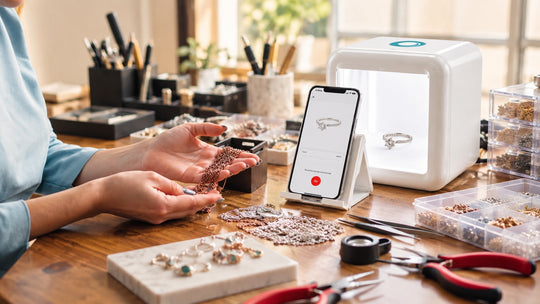
Capture stays unchanged. Burst Mode still produces four photos plus a video in fifteen seconds, and GemLightbox Mini still handles motion capture at the bench and counter. What changes is the export preset feeding the store.

What Does the Page Weight Look Like Before and After?
The same listing, same six images, same rotation, prepared two ways. The buyer sees identical content in both columns.
| Asset | Straight from capture | Prepared for the page |
|---|---|---|
| Hero image | 4000px JPEG, 3.2MB | 2048px, quality 82, 210KB |
| Top-down | 4000px JPEG, 3.0MB | 2048px, quality 82, 195KB |
| Profile | 4000px JPEG, 2.8MB | 2048px, quality 82, 180KB |
| Macro detail | 4000px JPEG, 3.4MB | 2048px, quality 82, 240KB |
| Scale reference | 4000px JPEG, 2.9MB | 2048px, quality 82, 200KB |
| Lifestyle frame | 4000px PNG, 8.1MB | 2048px JPEG, quality 80, 185KB |
| 360 video | 4K MOV, 74MB | 1080p MP4, poster frame, 6.2MB |
| Loading behavior | All images eager | Hero eager, remainder lazy |
| Initial page load | 23.4MB | 410KB |
Both figures count what the browser fetches on first paint. In the left column that is all six images at full size, with the video loading on top of it the moment a buyer opens the gallery. In the right column it is the hero image at 210KB plus the page shell, with the remaining five images and the video arriving on demand.
The video sits outside the initial load in the right column because the poster frame holds its place until a buyer opens it. Five of the six images sit outside it because they wait below the fold. What actually renders on first paint is the hero image and the page shell.
Same six images. Same rotation. Same buyer experience. The difference is entirely in the export preset and two lines of theme behavior, which means it is a setting you fix once rather than a compromise you make per listing.
Sources
- Google, Web Vitals — https://web.dev/articles/vitals
- Google, Largest Contentful Paint (LCP) — https://web.dev/articles/lcp
- Shopify Help Center, Product media types — https://help.shopify.com/en/manual/products/product-media/product-media-types
- Thunder Page Speed, Shopify Image Optimization: Sizes, Formats and Compression — https://www.thunderpagespeed.com/blog/shopify-image-optimization/
- Google, Optimize Largest Contentful Paint — https://web.dev/articles/optimize-lcp